Create a Conversation
You can create your first Conversation using the Twilio CLI or directly from your Customer details page.
First, let's make a Conversation using the Twilio CLI:
1twilio api:conversations:v1:conversations:create \2--friendly-name "My First Conversation"
Copy down the Conversation SID — it starts with CHXXX. Now, use it to fetch the new Conversation:
1twilio api:conversations:v1:conversations:fetch \2--sid CHXXXXXXXXXXXXXXXXXXXXXXXXXXXXXXXX
You'll use the Conversation SID in the next few steps when we add participants to the Conversation.
You've created a Conversation, which you can think of as a virtual space that users can join using a channel of their choice.
Add yourself as a chat participant. The following code sample does this for you. You will need to replace the following information:
CHXXXXXXXXXXXXXXXXXXXXXXXXXXXXXXXX— the Conversation SID.<YOUR_CHAT_USER_IDENTITY>— the identity of your Twilio Frontline user. To get this, go to the Twilio Chat console, click on the Default Conversations Service chat service, navigate to the Users page, and locate your chat user.
1twilio api:conversations:v1:conversations:participants:create \2--conversation-sid CHXXXXXXXXXXXXXXXXXXXXXXXXXXXXXXXX \3--identity "<YOUR_CHAT_USER_IDENTITY>"
Now open the app again, you should see a new conversation, the one that you created and where you added yourself as a participant. You need one more participant to have a real conversation, so let's add an SMS participant.
The second participant is someone connecting to the Conversation with an SMS-enabled phone number. Hint: Use the number that you purchased up above.
For the following code sample, replace the placeholder values:
CHXXXXXXXXXXXXXXXXXXXXXXXXXXXXXXXX— the Conversation SID.<YOUR_PERSONAL_NUMBER>— your own mobile number in E.164 format.<YOUR_PURCASHED_TWILIO_PHONE_NUMBER>— the Twilio number you purchased in E.164 format.
1twilio api:conversations:v1:conversations:participants:create \2--conversation-sid CHXXXXXXXXXXXXXXXXXXXXXXXXXXXXXXXX \3--messaging-binding.address "<YOUR_PERSONAL_NUMBER>" \4--messaging-binding.proxy-address "<YOUR_PURCASHED_TWILIO_PHONE_NUMBER>"
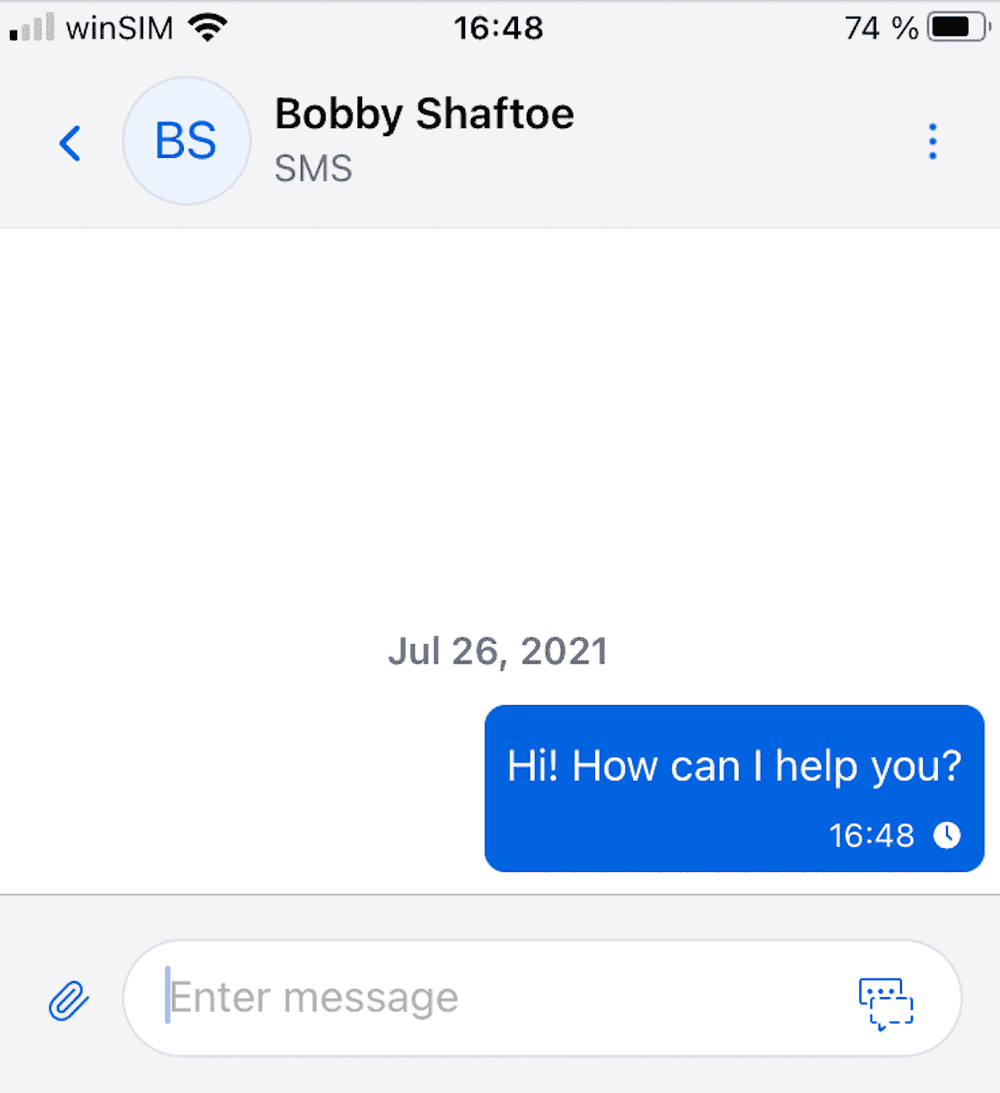
Open the app again and try to send a text message there. Your phone number should receive an SMS message almost immediately — just respond to it.
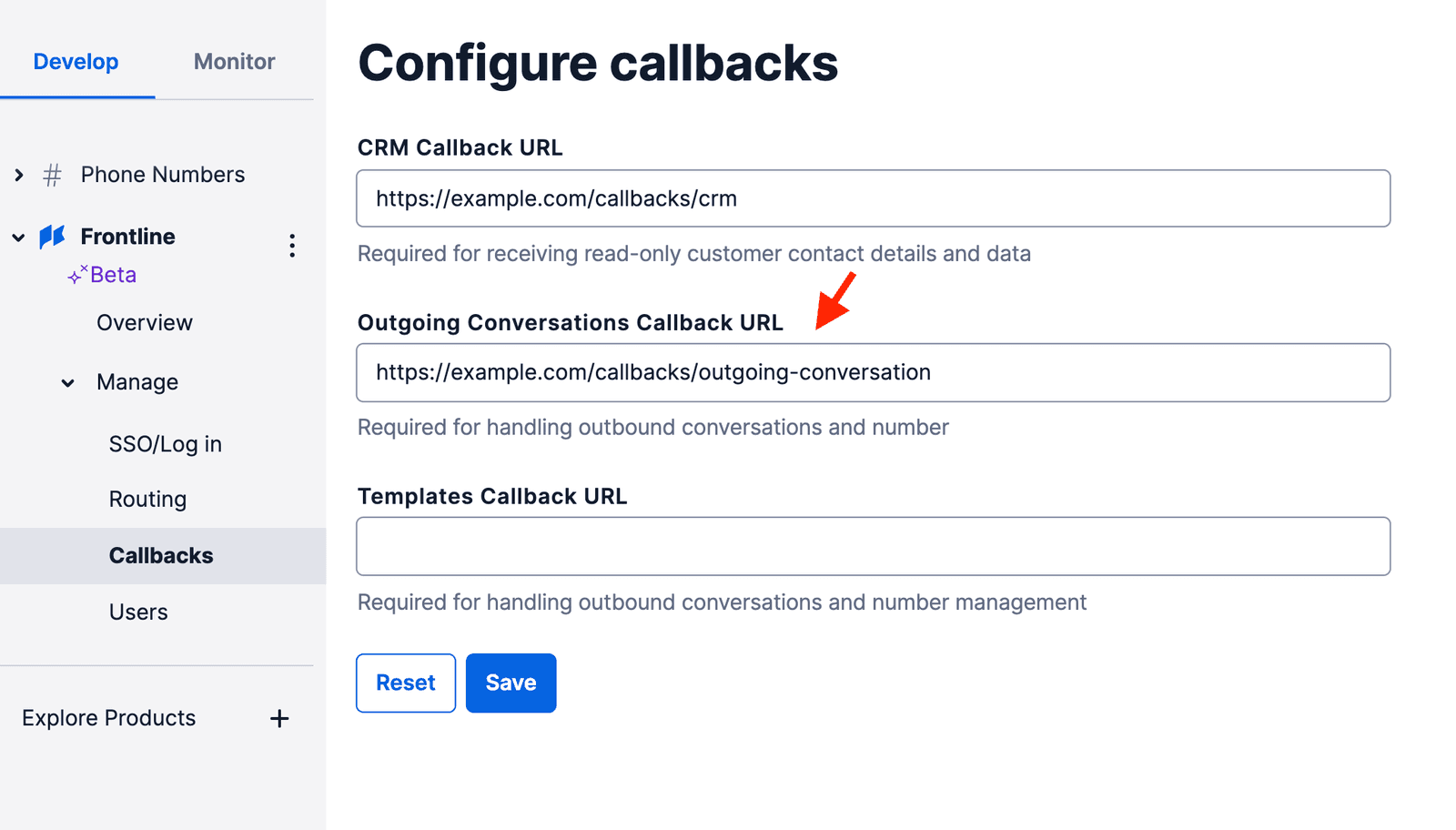
As mentioned before, you can also create your first conversation using your own CRM. To do this we need first to go to Callbacks in the Frontline console and add the Outgoing Conversations Callback URL:
Now open the app again and click on a customer's phone number. Great! You will now be able to start a new conversation.