Frontline Conversations Webhooks
Twilio uses webhooks to let your application know when an event is happening. These webhooks allow you to monitor and intercept user actions in your own backend service.
To handle inbound conversations in Frontline, you need to enable two Conversations webhooks:
- onConversationAdd
- onParticipantAdded
The onConversationAdd webhook is triggered before creating a conversation. This webhook can be used for setting the friendlyName and avatar for the conversation. This information is stored as attributes in the Conversation object.
Please refer to the following table for a detailed description of the Conversation resource attributes:
| Property | Type | Description |
|---|---|---|
friendlyName | String, optional | The human-readable name of a conversation. |
attributes.avatar | String, optional | An absolute URL to the conversation avatar image. A custom attribute defined by Twilio Frontline. |
The onParticipantAdded webhook is triggered when a participant has joined a Conversation. This webhook can be used for setting the customer_id and optionally setting the avatar and display_name for customer participants. This information is stored as attributes in the Participant object.
Please refer to the following table for a detailed description of the Participant resource attributes:
| Property | Type | Description |
|---|---|---|
attributes.customer_id | String | An ID used to tie together a conversation participant and a customer in your system. A custom attribute defined by Twilio Frontline. |
attributes.avatar | String, optional | An absolute URL to the participant's avatar image. A custom attribute defined by Twilio Frontline. |
attributes.display_name | String, optional | The participant's display name. A custom attribute defined by Twilio Frontline. |
Now, let's take a look at the configuration of the Conversations API Webhook.
Open your Twilio Console in a new browser. Click on Explore Products link in the left navigation pane and select Conversations product, then navigate to Manage > Global webhooks.
You should now see the Conversations API Webhook Configuration page.
Under the Webhook Target section, set the Pre-Event URL and Post-Event URL to target your ngrok URL.
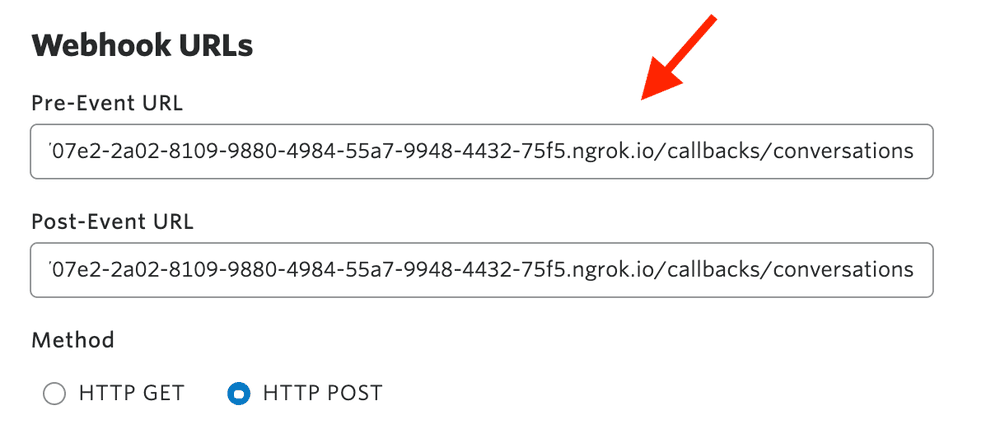
Under the Webhook Filtering section, select the onConversationAdd and onParticipantAdded options.
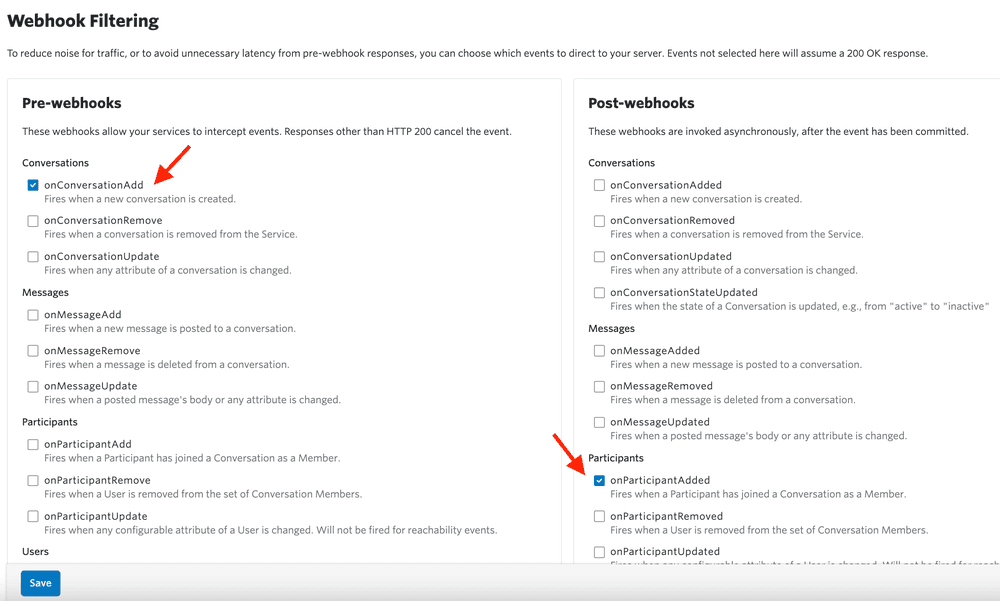
Click Save.
Now, you're all set with Conversations webhooks!
Take a look at the Conversations webhooks guide for more information.