# Set up your C# and ASP.NET MVC development environment
This tutorial covers creating your first Twilio voice application using C# and the set up of your C# and ASP.NET Core MVC development environment on Windows.
**Time to complete**: 60 minutes
## Prerequisites
These are the requirements before starting this tutorial:
* A Windows 11 or Windows 10 operating system. This tutorial targets Windows users using Visual Studio.
* [Visual Studio 2022](https://visualstudio.microsoft.com/vs/community/) with ASP.NET and web development workload.
* [.NET 6 SDK](https://dotnet.microsoft.com/download) or later. This is included with Visual Studio.
* [ngrok](https://ngrok.com/) for exposing your local development server.
* A [Twilio account](https://www.twilio.com/try-twilio). Twilio offers a free tier.
* A [Twilio phone number](https://www.twilio.com/console/phone-numbers/incoming) with voice capabilities (you can get one for free when you sign up for a Twilio account). To learn more about setting up your Twilio phone number, check out the [Twilio Voice Quickstart](https://www.twilio.com/docs/voice/quickstart/server).
> \[!NOTE]
>
> This tutorial targets Windows users. **For macOS and Linux users**: Use [Visual Studio Code](https://code.visualstudio.com/) with the [C# Dev Kit extension](https://marketplace.visualstudio.com/items?itemName=ms-dotnettools.csdevkit) instead. You'll also need the [.NET SDK](https://dotnet.microsoft.com/download). The development experience is very similar, but some steps in this guide may differ slightly and is not covered here.
## Create an ASP.NET Core MVC application
This section outlines project creation using Visual Studio templates and understanding the project structure:
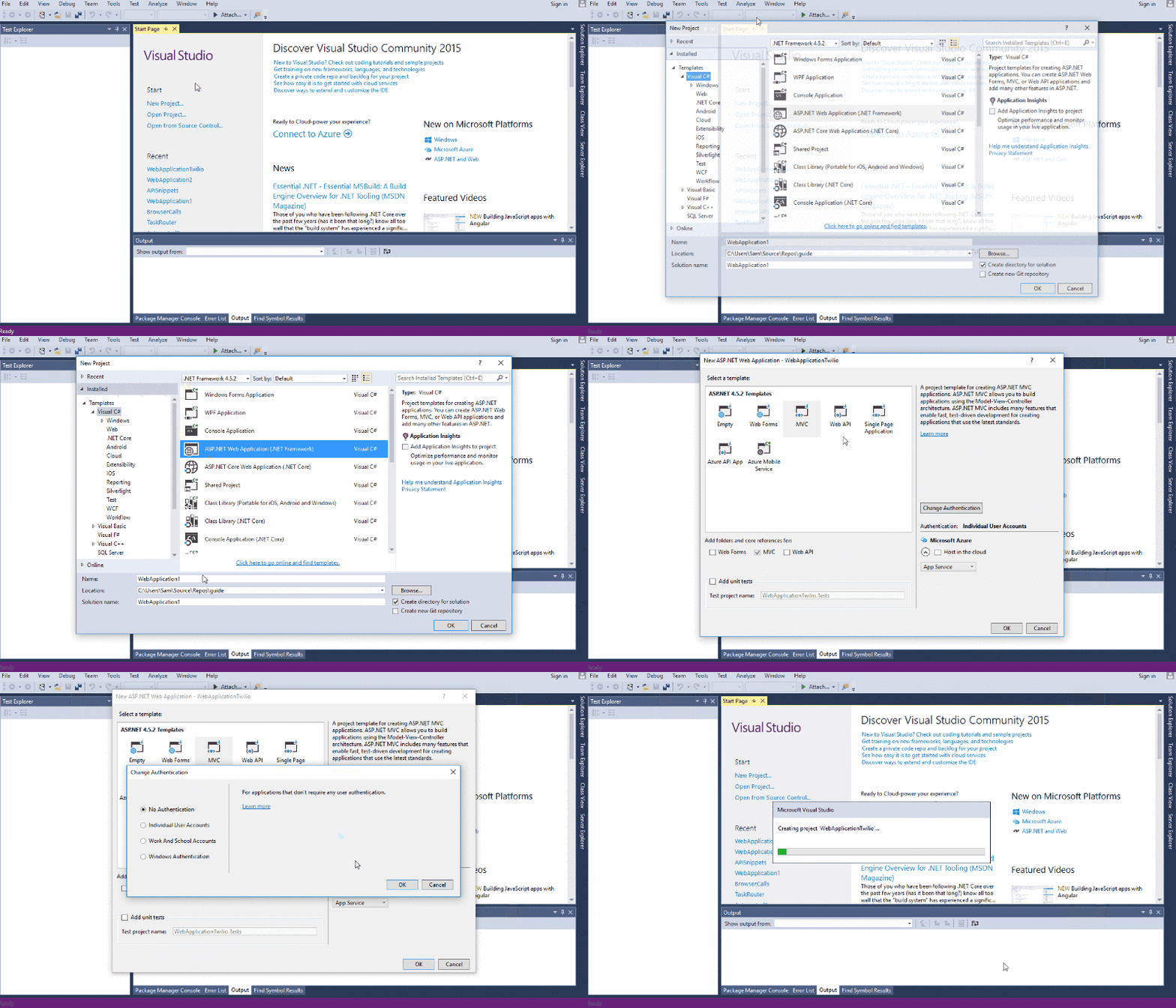
1. Open Visual Studio 2022 and click **Create a new project**.
2. Search for "ASP.NET Core Web App" and select **ASP.NET Core Web App (Model-View-Controller)**.
3. Click **Next**.
4. Enter a project name such as **WebApplicationTwilio** and choose a location.
5. Click **Next**.
6. Use the latest **LTS** version available.
7. Check **Configure for HTTPS**.
8. Clear **Docker** unless you specifically need it.
9. Click **Create**.
The **Solution Explorer** shows your project structure and is typically located on the right side of Visual Studio. If you don't see it, you can open it by going to **View** > **Solution Explorer** or pressing **Ctrl+Alt+L**.
Solution Explorer displays your project structure with the following folders:
* **Controllers** (contains your MVC controllers)
* **Views** (contains your HTML templates)
* **wwwroot** (contains static files like CSS, JavaScript, images)
* **Program.cs** (the main entry point for your application)
Visual Studio creates a fully configured ASP.NET Core MVC project.
## Add the Twilio C# SDK to your ASP.NET Core project
Next you install the Twilio NuGet package and create TwiML responses. You do this by adding the Twilio library through Visual Studio's package manager:
1. In **Solution Explorer**, right-click on your project *(not the solution)* and select **Manage NuGet Packages**.
2. Click on the **Browse** tab.
3. Search for **Twilio** and select the package from Twilio.
4. Click **Install** to add the latest version to your project.
## Create a TwiML response
To return TwiML instead of a standard HTML view, modify the `HomeController`. By default, it returns a basic HTML webpage.
1. Replace the content of `Controllers\HomeController.cs` with the following code:
```csharp title ="HomeController.cs"
// !mark(3,12:13,15)
using Microsoft.AspNetCore.Mvc;
using System.Diagnostics;
using Twilio.TwiML;
using WebApplicationTwilio.Models;
namespace WebApplicationTwilio.Controllers
{
public class HomeController : Controller
{
public IActionResult Index()
{
var response = new VoiceResponse();
response.Say("Hello World!");
return Content(response.ToString(), "text/xml");
}
public IActionResult Privacy()
{
return View();
}
[ResponseCache(Duration = 0, Location = ResponseCacheLocation.None, NoStore = true)]
public IActionResult Error()
{
return View(new ErrorViewModel { RequestId = Activity.Current?.Id ?? HttpContext.TraceIdentifier });
}
}
}
```
2. In the `Models` folder, create a new file called `ErrorViewModel.cs` with the following content:
```csharp title ="ErrorViewModel.cs"
namespace WebApplicationTwilio.Models
{
public class ErrorViewModel
{
public string? RequestId { get; set; }
public bool ShowRequestId => !string.IsNullOrEmpty(RequestId);
}
}
```
3. At this point, you can run your application. Press **F5** to run your application. The following page displays in your browser as XML at the URL `localhost:PORT/`:
```xml title = "TwimlResponse.xml"
Hello World
```
> \[!NOTE]
>
> The first time you run your app, it might display a security prompt for you to install SSL certificates.
>
> 1. If a Windows Security Alert prompts you to allow **IIS Express Web Development Certificate through Windows Defender Firewall**, click **Allow access**.
> 2. If a prompt to install the localhost certificate displays, click **Yes**.
> 3. If your browser displays a security warning about the self-signed certificate, click **Advanced**.
> 4. Click **Proceed to localhost**.
## Expose your local development environment with ngrok
Most Twilio services use webhooks to communicate with your application. When Twilio receives an incoming phone call, for example, it reaches out to a URL in your application for instructions on how to handle the call.
When you're working on your application in your development environment, your app is only reachable by other programs on the same computer. Twilio won't be able to talk to it.
*ngrok* provides a unique URL on the ngrok.io domain which forwards incoming requests to your local development environment.
### Start ngrok tunnel
How to run your application and create a public tunnel with ngrok:
1. Run your application as you did above and take note of the URL in the browser to find the **port number** your application is running on. ASP.NET Core typically uses ports like 5000, 5001, or 7000+.
2. Test your local application first by visiting `https://localhost:YOUR_PORT` to ensure the XML response displays correctly.
3. Using the port number, start ngrok using this command:
```bash
ngrok http 5678
```
#### Workaround for ngrok gateway errors
If you encounter an ngrok gateway error with the message "The server returned an invalid or incomplete HTTP response", this error typically occurs with secure upstream services. This happens when you're hosting a secure upstream service (`https://localhost:[PORT]`) but haven't configured the ngrok agent to send HTTPS traffic to it.
**The solution**:
When starting the ngrok agent, use the full upstream service address. For example:
```bash
ngrok http https://localhost:5678
```
Output resembles the following:
```bash
# !mark(7:8)
ngrok by @inconshreveable
Tunnel Status online
Version 3.x.x
Region us
Web Interface http://127.0.0.1:4040
Forwarding http://.ngrok.io -> http://localhost:5678
Forwarding https://.ngrok.io -> http://localhost:5678
Connections ttl opn rt1 rt5 p50 p90
0 0 0.00 0.00 0.00 0.00
```
If everything's working correctly, your "Hello World!" xml form above displays at your ngrok URL.
Any time you're working on your Twilio application and need a URL for a webhook, use ngrok to get a publicly accessible URL.
## Configure a webhook on Twilio
To use your ngrok URL as a webhook endpoint, you'll configure your Twilio phone number.
1. Make sure your local application is running and accessible through ngrok before testing, as described in [Start ngrok tunnel](#start-ngrok-tunnel).
2. Log into **Twilio console** > **Phone numbers** > **Manage** > **Active numbers**.
3. On the [Active Numbers page](https://console.twilio.com/us1/develop/phone-numbers/manage/incoming), you can buy or manage your phone numbers.
4. Click on the phone number you want to configure from the phone number list.
5. In the **Voice Configuration** section, in the **Configure with** panel, select **Webhook, TwiML Bin, Function, Studio Flow, Proxy Service**.
6. Find the **Webhook** from the **A call comes in** dropdown.
7. Enter your complete ngrok URL (e.g., `https://your-subdomain.ngrok.io`) in the **URL** field. This webhook points to your TwiML root endpoint (`/`).
8. Leave the **HTTP** method set to `HTTP POST` (this is the default).
9. Click **Save configuration** at the bottom of the page.
10. Call your Twilio phone number from any phone, and hear your "Hello World" message from your Twilio voice application.
> \[!NOTE]
>
> Your ngrok URL should be the complete HTTPS URL provided by ngrok that you generated in the [previous section](#start-ngrok-tunnel).
### Learn more about ASP.NET core
Your ASP.NET Core MVC application is ready for further development. Learn more with the following resources:
* [Get started with ASP.NET Core](https://docs.microsoft.com/en-us/aspnet/core/getting-started/)
* [ASP.NET Core MVC Overview](https://docs.microsoft.com/en-us/aspnet/core/mvc/overview/)
* [Dependency injection in ASP.NET Core](https://docs.microsoft.com/en-us/aspnet/core/fundamentals/dependency-injection/)
### Additional Twilio services and quickstarts
Here are additional Twilio services and quickstart guides:
* [SMS developer quickstart](/docs/messaging/quickstart)
* [WhatsApp Business Platform with Twilio quickstart](/docs/whatsapp/quickstart)
* [Programmable Voice quickstart](/docs/voice/quickstart/server)
* [Email API Quickstart for C#](/docs/sendgrid/for-developers/sending-email/email-api-quickstart-for-c)