# Source Functions
Source Functions allow you to gather data from any third-party applications without worrying about setting up or maintaining any infrastructure.
All functions are scoped to your workspace, so members of other workspaces cannot view or use them.
> \[!NOTE]
>
> Functions is available to all customer plan types with a free allotment of usage hours. Read more about [Functions usage limits](/docs/segment/connections/functions/usage/), or see [your workspace's Functions usage stats](https://app.segment.com/goto-my-workspace/settings/usage?metric=functions).

## Create a source function
1. From your workspace, go to **Connections > Catalog** and click the [Functions tab](https://app.segment.com/goto-my-workspace/functions/catalog).
2. Click **New Function**.
3. Select **Source** as the function type and click **Build**.
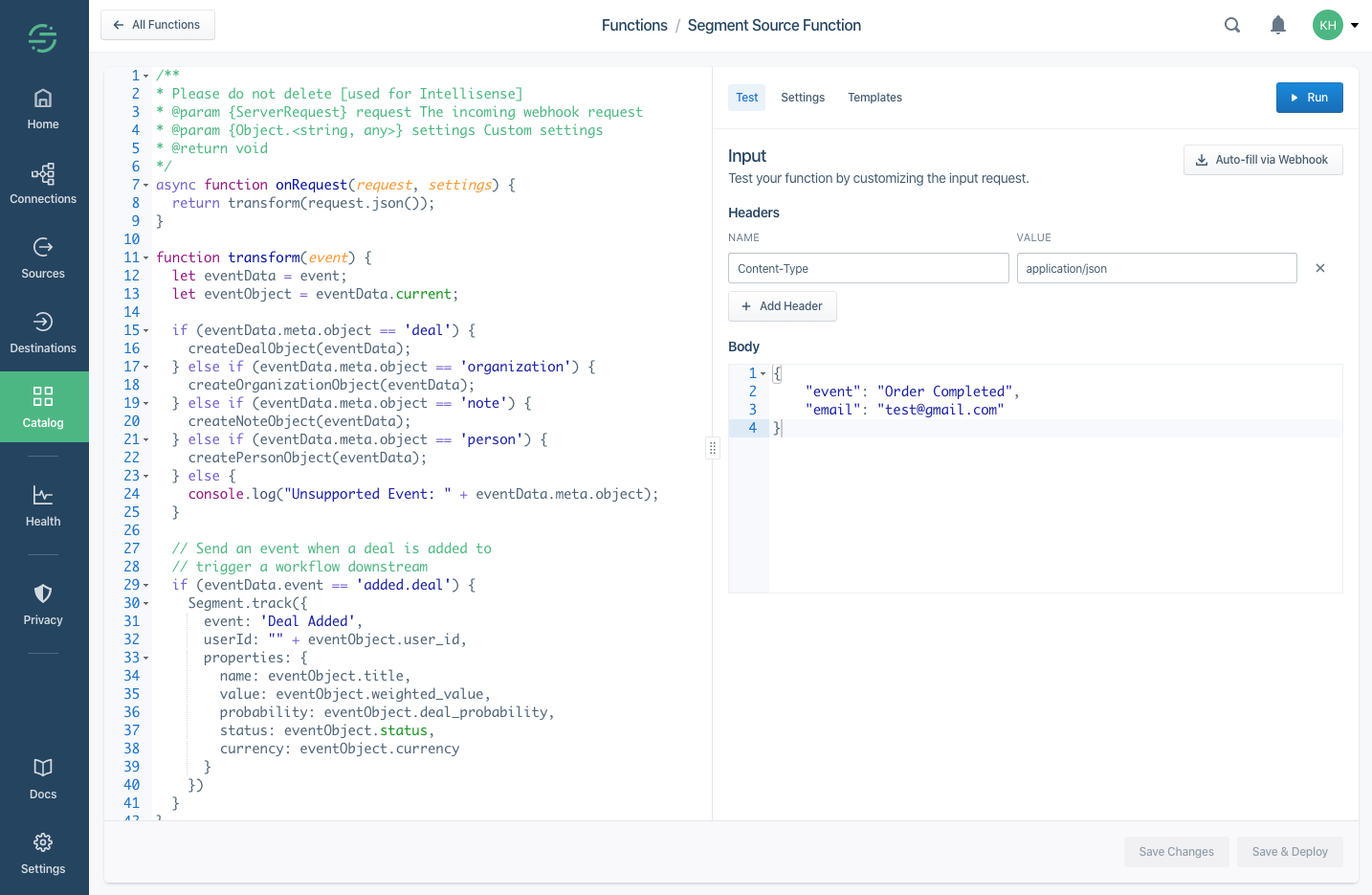
After you click **Build**, a code editor appears. Use the editor to write the code for your function, configure settings, and test the function's behavior.
> \[!TIP]
>
> Check out the templates available in the Functions UI, or in the open-source [Segment Functions Library](https://github.com/segmentio/functions-library). (Contributions welcome!)
## Code the source function
Source functions must have an `onRequest()` function defined.
This function is executed by Segment for each HTTPS request sent to this function's webhook.
```js
async function onRequest(request, settings) {
// Process incoming data
}
```
The `onRequest()` function receives two arguments:
* `request` - an object describing the incoming HTTPS request.
* `settings` - set of [settings](#create-settings-and-secrets) for this function.
### Request processing
To parse the JSON body of the request, use the `request.json()` method, as in the following example:
```js
async function onRequest(request) {
const body = request.json()
console.log('Hello', body.name)
}
```
Use the `request.headers` object to get values of request headers.
Since it's an instance of [`Headers`](https://developer.mozilla.org/en-US/docs/Web/API/Headers), the API is the same in both the browser and in Node.js.
```js
async function onRequest(request) {
const contentType = request.headers.get('Content-Type')
const authorization = request.headers.get('Authorization')
}
```
To access the URL details, refer to `request.url` object, which is an instance of [`URL`](https://developer.mozilla.org/en-US/docs/Web/API/URL).
```js
async function onRequest(request) {
// Access a query parameter (e.g. `?name=Jane`)
const name = request.url.searchParams.get('name')
}
```
#### Sending messages
You can send messages to the Segment API using the `Segment` object:
```js
async function onRequest(request) {
Segment.identify({
userId: 'user_id',
traits: {
name: 'Jane Hopper'
}
})
Segment.track({
event: 'Page Viewed',
userId: 'user_id',
properties: {
page_name: 'Summer Collection 2020'
}
})
Segment.group({
groupId: 'group_id',
traits: {
name: 'Clearbit'
}
})
Segment.set({
collection: 'products',
id: 'product_id',
properties: {
name: 'Nike Air Max'
}
})
}
```
##### Identify
Use [Identify calls](/docs/segment/connections/spec/identify/) to connect users with their actions, and to record traits about them.
```js
Segment.identify({
userId: 'user_id',
traits: {
name: 'Jane Hopper'
}
})
```
The `Segment.identify()` method accepts an object with the following fields:
* `userId` - Unique identifier for the user in your database.
* `anonymousId` - A pseudo-unique substitute for a User ID, for cases when you don't have an absolutely unique identifier.
* `traits` - Object with data about or related to the user, like `name` or `email`.
* `context` - Object with extra information that provides useful context, like `locale` or `country`.
##### Track
[Track calls](/docs/segment/connections/spec/track/) record actions that users perform, along with any properties that describe the action.
```js
Segment.track({
event: 'Page Viewed',
userId: 'user_id',
properties: {
page_name: 'Summer Collection 2020'
}
})
```
The `Segment.track()` method accepts an object with the following fields:
* `userId` - Unique identifier for the user in your database.
* `anonymousId` - A pseudo-unique substitute for a User ID, for cases when you don't have an absolutely unique identifier.
* `properties` - Object with data that is relevant to the action, like `product_name` or `price`.
* `context` - Object with extra information that provides useful context, like `locale` or `country`.
##### Group
[Group calls](/docs/segment/connections/spec/group/) associate users with a group, like a company, organization, account, project, or team.
```js
Segment.group({
groupId: 'group_id',
traits: {
name: 'Clearbit'
}
})
```
The `Segment.group()` method accepts an object with the following fields:
* `groupId` - Unique identifier for the group in your database.
* `traits` - Object with data that is relevant to the group, like `group_name` or `team_name`.
* `context` - Object with extra information that provides useful context, like `locale` or `country`.
##### Page
[Page calls](/docs/segment/connections/spec/page/) record whenever a user sees a page of your website, along with any other properties about the page.
```js
Segment.page({
name: 'Shoe Catalog',
properties: {
url: 'https://myshoeshop.com/catalog'
}
})
```
The `Segment.page()` method accepts an object with the following fields:
* `userId` - Unique identifier for the user in your database.
* `anonymousId` - A pseudo-unique substitute for a User ID, for cases when you don't have an absolutely unique identifier.
* `name` - Name of the page.
* `properties` - Object with information about the page, like `page_name` or `page_url`.
* `context` - Object with extra information that provides useful context, like `locale` or `country`.
##### Screen
[Screen calls](/docs/segment/connections/spec/screen/) record when a user sees a screen, the mobile equivalent of [Page](#page), in your mobile app.
```js
Segment.screen({
name: 'Shoe Feed',
properties: {
feed_items: 5
}
})
```
The `Segment.screen()` method accepts an object with the following fields:
* `userId` - Unique identifier for the user in your database.
* `anonymousId` - A pseudo-unique substitute for a User ID, for cases when you don't have an absolutely unique identifier.
* `name` - Name of the screen.
* `properties` - Object with data about the screen, like `screen_name`.
* `context` - Object with extra information that provides useful context, like `locale` or `country`.
##### Alias
The [Alias call](/docs/segment/connections/spec/alias/) merges two user identities, effectively connecting two sets of user data as one.
```js
Segment.alias({
previousId: 'old-email@example.com',
userId: 'new-email@example.com'
})
```
The `Segment.alias()` method accepts an object with the following fields:
* `previousId` - Previous unique identifier for the user.
* `userId` - Unique identifier for the user in your database.
* `anonymousId` - A pseudo-unique substitute for a User ID, for cases when you don't have an absolutely unique identifier.
##### Set
The Set call uses [the object API](/docs/segment/connections/sources/catalog/libraries/server/object-api/) to save object data to your Redshift, BigQuery, Snowflake, or other data warehouses supported by Segment.
```js
Segment.set({
collection: 'products',
id: 'product_id',
properties: {
name: 'Nike Air Max 90',
size: 11
}
})
```
The `Segment.set()` method accepts an object with the following fields:
* `collection` - A collection name, which must be lowercase.
* `id` - An object's unique identifier.
* `properties` - An object with free-form data.
> \[!WARNING]
>
> When you use the `set()` method, you won't see events in the Source Debugger. Segment only sends events to connected warehouses.
### Variable scoping
Declare settings variables in the function handler, rather than globally in your function. This prevents you from leaking the settings values across other function instances.
The handler for source functions is `onRequest()`.
### Runtime and dependencies
Segment Functions run on the Node.js LTS runtime (currently v20). This keeps the runtime current with industry standards and security updates.
Based on the [AWS Lambda](https://docs.aws.amazon.com/lambda/latest/dg/lambda-runtimes.html) and [Node.js](https://nodejs.org/en/about/previous-releases) support schedule, production applications should only use Node.js releases that are in Active LTS or Maintenance LTS.
When Segment upgrades the Functions runtime to a new LTS version, existing functions automatically use the new runtime after their next deployment. Segment recommends checking your function after deployment to ensure everything works as expected, since dependency or syntax changes between Node.js versions might affect your function's behavior.
Functions don't support importing dependencies, but you can [contact Segment Support](https://segment.com/help/contact/) to request that one be added.
The following dependencies are installed in the function environment by default:
* [`atob v2.1.2`](https://www.npmjs.com/package/atob) exposed as `atob`
* [`aws-sdk v2.488.0`](https://www.npmjs.com/package/aws-sdk) exposed as `AWS`
* [`btoa v1.2.1`](https://www.npmjs.com/package/btoa) exposed as `btoa`
* [`fetch-retry`](https://www.npmjs.com/package/fetch-retry) exposed as `fetchretrylib.fetchretry`
* [`form-data v2.4.0`](https://www.npmjs.com/package/form-data) exposed as `FormData`
* [`@google-cloud/automl v2.2.0`](https://www.npmjs.com/package/@google-cloud/automl) exposed as `google.cloud.automl`
* [`@google-cloud/bigquery v5.3.0`](https://www.npmjs.com/package/@google-cloud/bigquery) exposed as `google.cloud.bigquery`
* [`@google-cloud/datastore v6.2.0`](https://www.npmjs.com/package/@google-cloud/datastore) exposed as `google.cloud.datastore`
* [`@google-cloud/firestore v4.4.0`](https://www.npmjs.com/package/@google-cloud/firestore) exposed as `google.cloud.firestore`
* [`@google-cloud/functions v1.1.0`](https://www.npmjs.com/package/@google-cloud/functions) exposed as `google.cloud.functions`
* [`@google-cloud/pubsub v2.6.0`](https://www.npmjs.com/package/@google-cloud/pubsub) exposed as `google.cloud.pubsub`
* [`@google-cloud/storage v5.3.0`](https://www.npmjs.com/package/@google-cloud/storage) exposed as `google.cloud.storage`
* [`@google-cloud/tasks v2.6.0`](https://www.npmjs.com/package/@google-cloud/tasks) exposed as `google.cloud.tasks`
* [`hubspot-api-nodejs`](https://www.npmjs.com/package/@hubspot/api-client) exposed as `hubspotlib.hubspot`
* [`jsforce v1.11.0`](https://www.npmjs.com/package/jsforce) exposed as `jsforce`
* [`jsonwebtoken v8.5.1`](https://www.npmjs.com/package/jsonwebtoken) exposed as `jsonwebtoken`
* [`libphonenumber-js`](https://www.npmjs.com/package/libphonenumber-js) exposed as `libphonenumberjslib.libphonenumberjs`
* [`lodash v4.17.19`](https://www.npmjs.com/package/lodash) exposed as `_`
* [`mailchimp marketing`](https://www.npmjs.com/package/@mailchimp/mailchimp_marketing) exposed as `mailchimplib.mailchimp`
* [`mailjet`](https://www.npmjs.com/package/node-mailjet) exposed as `const mailJet = nodemailjet.nodemailjet;`
* [`moment-timezone v0.5.31`](https://www.npmjs.com/package/moment-timezone/v/0.5.31) exposed as `moment`
* [`node-fetch v2.6.0`](https://www.npmjs.com/package/node-fetch) exposed as `fetch`
* [`oauth v0.9.15`](https://www.npmjs.com/package/oauth) exposed as `OAuth`
* [`@sendgrid/client v7.4.7`](https://www.npmjs.com/package/@sendgrid/client) exposed as `sendgrid.client`
* [`@sendgrid/mail v7.4.7`](https://www.npmjs.com/package/@sendgrid/mail) exposed as `sendgrid.mail`
* [`skyflow`](https://www.npmjs.com/package/skyflow-node) exposed as `skyflowlib.skyflow`
* [`stripe v8.115.0`](https://www.npmjs.com/package/stripe) exposed as `stripe`
* [`twilio v3.68.0`](https://www.npmjs.com/package/twilio) exposed as `twilio`
* [`uuidv5 v1.0.0`](https://www.npmjs.com/package/uuidv5) exposed as `uuidv5.uuidv5`
* [`winston v2.4.6`](https://www.npmjs.com/package/winston) exposed as `const winston = winstonlib.winston`
* [`xml v1.0.1`](https://www.npmjs.com/package/xml) exposed as `xml`
* [`xml2js v0.4.23`](https://www.npmjs.com/package/xml2js) exposed as `xml2js`
* [`zlib v1.0.5`](https://www.npmjs.com/package/zlib) exposed as `zlib.zlib`
```js
async function onRequest(request, settings) {
uuidv5 = uuidv5.uuidv5;
console.log(typeof uuidv5);
//Generate a UUID in the default URL namespace
var urlUUID = uuidv5('url', 'http://google/com/page');
console.log(urlUUID);
//Default DNS namespace
var dnsUUID = uuidv5('dns', 'google.com');
console.log(dnsUUID);
}
```
`zlib`'s asynchronous methods `inflate` and `deflate` must be used with `async` or `await`. For example:
```js
zlib = zlib.zlib; // Required to access zlib objects and associated functions
async function onRequest(request, settings) {
const body = request.json();
const input = 'something';
// Calling inflateSync method
var deflated = zlib.deflateSync(input);
console.log(deflated.toString('base64'));
// Calling inflateSync method
var inflated = zlib.inflateSync(new Buffer.from(deflated)).toString();
console.log(inflated);
console.log('Done');
}
```
The following Node.js modules are available:
* [`crypto` Node.js module](https://nodejs.org/dist/latest-v10.x/docs/api/crypto.html) exposed as `crypto`.
* [`https` Node.js module](https://nodejs.org/api/https.html) exposed as `https`.
[Other built-in Node.js modules](https://nodejs.org/api/modules.html) aren't available.
For more information on using the `aws-sdk` module, see how to [set up functions for calling AWS APIs](/docs/segment/connections/functions/aws-apis/).
### Caching
Basic cache storage is available through the `cache` object, which has the following methods defined:
* `cache.load(key: string, ttl: number, fn: async () => any): Promise`
* Obtains a cached value for the provided `key`, invoking the callback if the value is missing or has expired. The `ttl` is the maximum duration in milliseconds the value can be cached. If omitted or set to `-1`, the value will have no expiry.
* `cache.delete(key: string): void`
* Immediately remove the value associated with the `key`.
Some important notes about the cache:
* When testing functions in the code editor, the cache will be empty because each test temporarily deploys a new instance of the function.
* Values in the cache are not shared between concurrently-running function instances; they are process-local which means that high-volume functions will have many separate caches.
* Values may be expunged at any time, even before the configured TTL is reached. This can happen due to memory pressure or normal scaling activity. Minimizing the size of cached values can improve your hit/miss ratio.
* Functions that receive a low volume of traffic may be temporarily suspended, during which their caches will be emptied. In general, caches are best used for high-volume functions and with long TTLs.
The following example gets a JSON value through the cache, only invoking the callback as needed:
```js
const ttl = 5 * 60 * 1000 // 5 minutes
const val = await cache.load("mycachekey", ttl, async () => {
const res = await fetch("http://echo.jsontest.com/key/value/one/two")
const data = await res.json()
return data
})
```
## Create settings and secrets
Settings allow you to pass configurable variables to your function, which is the best way to pass sensitive information such as security tokens. For example, you might use `settings` as placeholders to use information such as an API endpoint and API key. This way, you can use the same code with different settings for different purposes. When you deploy a function in your workspace, you are prompted to fill out these settings to configure the function.
First, add a setting in **Settings** tab in the code editor:

Click **Add Setting** to add your new setting.

You can configure the details about this setting, which change how it's displayed to anyone using your function:
* **Label** - Name of the setting, which users see when configuring the function.
* **Name** - Auto-generated name of the setting to use in function's source code.
* **Type** - Type of the setting's value.
* **Description** - Optional description, which appears below the setting name.
* **Required** - Enable this to ensure that the setting cannot be saved without a value.
* **Encrypted** - Enable to encrypt the value of this setting. Use this setting for sensitive data, like API keys.
As you change the values, a preview to the right updates to show how your setting will look and work.
Click **Add Setting** to save the new setting.
Once you save a setting, it appears in the **Settings** tab for the function. You can edit or delete settings from this tab.

Next, fill out this setting's value in **Test** tab, so that you can run the function and check the setting values being passed.
Note, this value is only for testing your function.

Now that you've configured a setting and filled in a test value, you can add code to read its value and run the function:
```js
async function onRequest(request, settings) {
const apiKey = settings.apiKey
//=> "super_secret_string"
}
```
When you deploy a source function in your workspace, you are prompted to fill out settings to configure the source. You can access these settings later by navigating to the Source Settings page for the source function.

## Test the source function
You can test your code directly from the editor in two ways: either by receiving real HTTPS requests through a webhook, or by manually constructing an HTTPS request from within the editor.
The advantage of testing your source function with webhooks is that all incoming data is real, so you can test behavior while closely mimicking the production conditions.
Note: Segment has updated the webhook URL to `api.segmentapis.com/functions`. To use webhooks with your function, you must:
* [Generate a Public API token](https://docs.segmentapis.com/tag/Getting-Started/#section/Get-an-API-token).
* [Create a Public API Token](https://app.segment.com/goto-my-workspace/settings/access-management/tokens), or follow these steps:
In your Segment Workspace, navigate to **Settings** > **Workspace settings** > **Access Management** > **Token**. Click **+ Create Token**. Create a description for the token and assign access. Click **Create** and save the access token before clicking **Done**.
* For `POST` calls, use this Public API token in the Authorization Header, as `Bearer Token : public_api_token`
### Testing source functions with a webhook
You can use webhooks to test the source function either by sending requests manually (using any HTTP client such as cURL, Postman, or Insomnia), or by pasting the webhook into an external server that supports webhooks (such as Slack).
#### Use case
A common Segment use case is to connect a Segment [webhooks destination](/docs/segment/connections/destinations/catalog/webhooks/) or [webhook actions destination](/docs/segment/connections/destinations/catalog/actions-webhook/) to a test source, where the Webhook URL/endpoint that is used corresponds to the provided source function's endpoint, then you can trigger test events to send directly to that source, which are routed through your Webhook destination and continue on to the source function: **Source** > **Webhook destination** > **Source Function**.
From the source function editor, copy the provided webhook URL (endpoint) from the "Auto-fill via Webhook" dialog.
**Note** : When a new source is created that utilizes a source function, the new source's endpoint (webhook URL) will differ from the URL that is provided in the source function's test environment.
To test the source function:
1. Send a `POST` request to the source function's provided endpoint (webhook URL)
2. Include an event `body`
3. The request must include these Headers:
* `Content-Type : application/json` or `Content-Type : application/x-www-form-urlencoded`
* `Authorization : Bearer _your_public_api_token_`
### Testing source functions manually
You can also manually construct the headers and body of an HTTPS request inside the editor and test with this data without using webhooks.
The `Content-Type` Header is required when testing the function:
* `Content-Type : application/json` or `Content-Type : application/x-www-form-urlencoded`

## Save and deploy the function
After you finish building your source function, click **Configure** to name it, then click **Create Function** to save it.
The source function appears on the **Functions** page in your workspace's catalog.
If you're editing an existing function, you can **Save** changes without updating instances of the function that are already deployed and running.
You can also choose to **Save & Deploy** to save the changes, and then choose which already-deployed functions to update with your changes. You might need [additional permissions](#source-functions-permissions) to update existing functions.
## Source functions logs and errors
Your function may encounter errors that you missed during testing, or you might intentionally throw errors in your code (for example, if the incoming request is missing required fields).
If your function throws an error, execution halts immediately. Segment captures the incoming request, any console logs the function printed, and the error, and displays this information in the function's **Errors** tab. You can use this tab to find and fix unexpected errors.

Functions can throw [an Error or custom Error](https://developer.mozilla.org/en-US/docs/Web/JavaScript/Reference/Global_Objects/Error), and you can also add additional helpful context in logs using the [`console` API](https://developer.mozilla.org/en-US/docs/Web/API/console).
For example:
```js
async function onRequest(request, settings) {
const body = request.json()
const userId = body.userId
console.log('User ID is', userId)
if (typeof userId !== 'string' || userId.length < 8) {
throw new Error('User ID is invalid')
}
console.log('User ID is valid')
}
```
> \[!WARNING]
>
> **Do not log sensitive data**, such as personally-identifying information (PII), authentication tokens, or other secrets. You should especially avoid logging entire request/response payloads.
>
> Segment only retains the 100 most recent errors and logs for up to 30 days but the **Errors** tab may be visible to other workspace members if they have the necessary permissions.
### Error types
* **Bad Request**: Any error thrown by your code not covered by the other errors.
* **Invalid Settings**: A configuration error prevented Segment from executing your code. If this error persists for more than an hour, [contact Segment Support](https://segment.com/help/contact/).
* **Message Rejected**: Your code threw `InvalidEventPayload` or `ValidationError` due to invalid input.
* **Unsupported Event Type**: Your code doesn't implement a specific event type (for example, `onTrack()`) or threw an `EventNotSupported` error.
* **[StatusCode: 429, TooManyRequestsException: Rate Exceeded](/docs/segment/connections/integration_error_codes/)**: Rate limit exceeded. These events will be retried when the rate becomes available.
* **[failed calling Tracking API: the message is too large and over the maximum 32KB limit](/docs/segment/connections/sources/catalog/libraries/server/http-api/)**: Segment's Tracking API can only handle API requests that are 32KB or smaller. Reduce the size of the request for Segment to accept the event.
* **Retry**: Your code threw `RetryError` indicating that the function should be retried.
Segment only attempts to run your source function again if a **Retry** error occurs.
## Managing source functions
### Source functions permissions
Functions have specific roles which can be used for [access management](/docs/segment/segment-app/iam/) in your Segment workspace.
Access to functions is controlled by two permissions [roles](/docs/segment/segment-app/iam/roles/):
* **Functions Admin:** Create, edit, and delete all functions, or a subset of specified functions.
* **Functions Read-only:** View all functions, or a subset of specified functions.
You also need additional **Source Admin** permissions to enable source functions, connect destination functions to a source, or to deploy changes to existing functions.
### Editing and deleting source functions
If you are a **Workspace Owner** or **Functions Admin**, you can manage your source function from the [Functions](https://app.segment.com/goto-my-workspace/functions/catalog) tab in the catalog.
### Connecting source functions
> \[!NOTE]
>
> You must be a **Workspace Owner** or **Source Admin** to connect an instance of your function in your workspace.
From the [Functions tab](https://app.segment.com/goto-my-workspace/functions/catalog), click **Connect Source** and follow the prompts to set it up in your workspace.
After configuring, find the webhook URL - either on the **Overview** or **Settings → Endpoint** page.
Copy and paste this URL into the upstream tool or service to send data to this source.
## Source Function FAQs
##### What is the retry policy for a webhook payload?
Segment retries invocations that throw RetryError or Timeout errors up to six times. After six attempts, the request is dropped.
The initial wait time for the retried event is a random value between one and three minutes.
Wait time increases exponentially after every retry attempt. The maximum wait time between attempts can reach 20 minutes.
##### I configured `RetryError` in a function, but it doesn't appear in my source function error log.
Retry errors only appear in the source function error logs if the event has exhausted all six retry attempts and, as a result, has been dropped.
If an event is successfully ingested after multiple retry attempts, records of any previous retry attempts remain in the source function error log.
##### What is the maximum payload size for the incoming webhook?
The maximum payload size for an incoming webhook payload is 512 KiB.
##### What is the timeout for a function to execute?
The execution time limit is five seconds, however we strongly recommend that you keep execution time as low as possible. If you are making multiple external requests you can use async or await to make them concurrently, which will help keep your execution time low.
#### Does Segment alter incoming payloads?
Segment alphabetizes payload fields that come in to **deployed** source functions. Segment doesn't alphabetize payloads in the Functions tester. If you need to verify the exact payload that hits a source function, alphabetize it first. You can then make sure it matches what the source function ingests.
#### Does the source function allow `GET` requests?
`GET` requests are not supported with a source function. Source functions can only receive data through `POST` requests.
#### Can I use a Source Function in place of adding a Tracking Pixel to my code?
No. Tracking Pixels operate client-side only and need to be loaded onto your website directly. Source functions operate server-side only, and aren't able to capture or implement client-side tracking code. If the tool you're hoping to integrate is server-side, then you can use a Source function to connect it to Segment.
##### What is the maximum data size that can be displayed in console.logs() when testing a Function?
The test function interface has a 4KB console logging limit. Outputs surpassing this limit will not be visible in the user interface.
#### Can I send a custom response from my source function to an external tool?
No, Source functions can't send custom responses to the tool that triggered the Function's webhook. Source functions can only send a success or failure response, not a custom one.
#### Why am I seeing the error "Functions are unable to send data or events back to their originating source" when trying to save my Source Function?
This error occurs because Segment prevents Source functions from sending data back to their own webhook endpoint (`https://fn.segmentapis.com`). Allowing this could create an infinite loop where the function continuously triggers itself.
To resolve this error, check your Function code and ensure the URL `https://fn.segmentapis.com` is not included. This URL is used to send data to a Source Function and shouldn't appear in your outgoing requests. Once you remove this URL from your code, you'll be able to save the Function successfully.