# Push notifications on Android for Programmable Chat
> \[!CAUTION]
>
> Programmable Chat has been deprecated and is no longer supported. Instead, we'll be focusing on the next generation of chat: Twilio Conversations. Find out more about the [EOL process here](https://www.twilio.com/en-us/changelog/programmable-chat-end-of-life-notice).
>
> If you're starting a new project, please visit the [Conversations Docs](/docs/conversations) to begin. If you've already built on Programmable Chat, please visit our [Migration Guide](/docs/conversations/migrating-chat-conversations) to learn about how to switch.
## Push notifications on Android
Push notifications are integral to the mobile experience. The Android Programmable Chat SDK supports push notifications using GCM and FCM. Managing your push credentials is necessary because your registration token is required for the Chat SDK to send notifications through GCM or FCM.
In this guide, you will learn how to manage your push credentials to enable push notifications for the Android Programmable Chat SDK.
### Prerequisites
Before you begin, ensure you have the following:
* A Twilio account
* An Android app using the Programmable Chat SDK
* A Google account to access GCM or FCM
## Step 1 - Enable push notifications for your Service instance
**Important**: The default enabled flag for new Service instances for all push notifications is `false`. This means that push notifications are disabled until you explicitly enable them. See [Push Notification Configuration](/docs/chat/push-notification-configuration) to enable push notifications for your Service instance.
## Step 2 - Create a configuration file
Both GCM and FCM services look for a file called `google-services.json` in your Android app to identify push configuration details. Google provides a web interface for generating this file. For GCM, see [Add Firebase to your Android project](https://developers.google.com/mobile/add?platform=android\&cntapi=gcm). For FCM, you can generate the file from the [Firebase Console](https://console.firebase.google.com/).
Copy the `google-services.json` file you download into the `app/` directory of your Android Studio project.
### GCM
Once you've entered your app credentials, you can download the generated file to your desktop. Save the API key that is displayed on the last page, as we're going to use it later.
### FCM
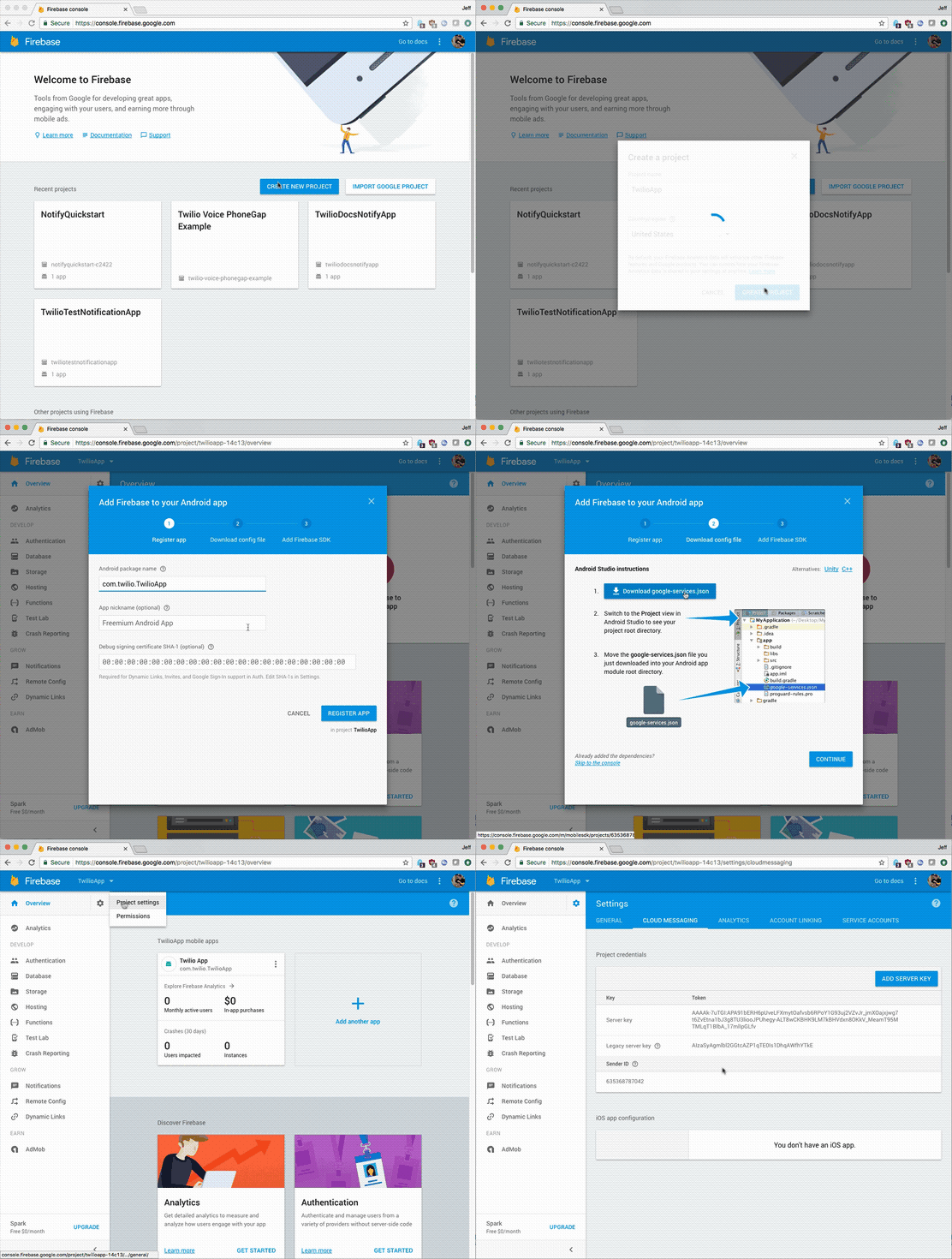
After entering your app credentials, download the generated `google-services.json` file to your desktop. Save the API key that is displayed on the last page, as we'll use it later.
## Step 3 - Set up your project's dependencies
Android Studio uses [Gradle](https://gradle.org/) to parse your credentials from the `google-services.json` file. Your app has two `build.gradle` files: a project-level one (global) and an app-level one (inside the `app/` directory).
Add this line to buildscript dependencies in your project-level `build.gradle`:
```bash
classpath 'com.google.gms:google-services:3.0.0'
```
Add this line to the end of your app-level `build.gradle`:
```bash
apply plugin: 'com.google.gms.google-services'
```
### GCM
You need to import the Google Play Services SDK for your client to communicate with GCM. Add the following line to the dependencies section of your app-level `build.gradle`:
```bash
compile 'com.google.android.gms:play-services:9.0.0'
```
**Note**: Be sure to use the `com.android.tools.build:gradle:2.1.2` build plugin with Gradle, not `com.android.tools.build:gradle-experimental:0.7.0`. The latter will not work with the Google Services plugin and will not process your JSON file. If you need to use `gradle-experimental`, you will have to implement JSON parsing yourself or hardcode the Sender ID.
### FCM
You need to import the Google Play Services and Firebase Messaging SDKs for your client to communicate with FCM. Add the following lines to the dependencies section of your app-level `build.gradle`:
```bash
compile 'com.google.firebase:firebase-messaging:10.2.0'
compile 'com.google.android.gms:play-services-base:10.2.0'
```
**Note**: Use version 10.2.0 or later, as earlier versions will not work.
## Step 4 - Edit the application manifest
The application manifest file defines critical information like permissions and dependency versions for the Android app before it runs any code. You need to add a few lines to configure your app to communicate with Google's push service.
### GCM
Add the `C2D_MESSAGE` permission to prevent other Android apps from registering and receiving your messages:
```xml
```
Next, add the `GcmReceiver` to handle messages sent from GCM with the proper permissions enabled:
```xml
```
You'll also want to add the `GcmListenerService` to handle messaging-related events. An example implementation can be seen [here](https://github.com/twilio/twilio-chat-demo-android/blob/sdk-0.11.0/chat-demo-android/src/main/java/com/twilio/chat/demo/GCMListenerService.java).
```xml
```
Create a service that extends `InstanceIDListenerService` to handle registration tokens. An example implementation can be seen [here](https://github.com/twilio/twilio-chat-demo-android/blob/sdk-0.11.0/chat-demo-android/src/main/java/com/twilio/chat/demo/DemoInstanceIDListenerService.java).
```xml
```
Add a service to handle subscriptions to GCM. See [here](https://github.com/twilio/twilio-chat-demo-android/blob/sdk-0.11.0/chat-demo-android/src/main/java/com/twilio/chat/demo/RegistrationIntentService.java) for an example implementation.
```xml
```
Make sure to add the `WAKE_LOCK` permission to keep the processor from sleeping when a message is received:
```xml
```
Lastly, ensure the minimum SDK version is set to 8 or higher so that GCM works properly:
```xml
```
### FCM
Add the `C2D_MESSAGE` permission to prevent other Android apps from registering and receiving your messages:
```xml
```
You'll also want to add the `FCMListenerService` to handle events related to messaging. An example implementation can be seen [here](https://github.com/twilio/twilio-chat-demo-android/blob/sdk-0.12.2/chat-demo-android/src/main/java/com/twilio/chat/demo/FCMListenerService.java).
```xml
```
With FCM, you can set defaults for values that may be missing from incoming notifications. The notification background color and icon can be set like this:
```xml
```
Create a service that extends `InstanceIDListenerService` to handle registration tokens. An example implementation can be seen [here](https://github.com/twilio/twilio-chat-demo-android/blob/sdk-0.12.2/chat-demo-android/src/main/java/com/twilio/chat/demo/FCMInstanceIDService.java).
```xml
```
Add a service to handle subscriptions to FCM. See [here](https://github.com/twilio/twilio-chat-demo-android/blob/sdk-0.12.2/chat-demo-android/src/main/java/com/twilio/chat/demo/RegistrationIntentService.java) for an example implementation.
```xml
```
Make sure to add the `WAKE_LOCK` permission to keep the processor from sleeping when a message is received:
```xml
```
Lastly, ensure the minimum SDK version is set to 8 or higher so that FCM works properly:
```xml
```
## Step 5 - Upload your API key to Twilio
Now that we have our app configured to receive push notifications, let's upload our API key by creating a Credential resource. Check out [Create Credential](/console/notify/credentials/create) to generate a Credential SID using the API key.
### GCM
From the drop-down, choose GCM and paste in the key.
### FCM
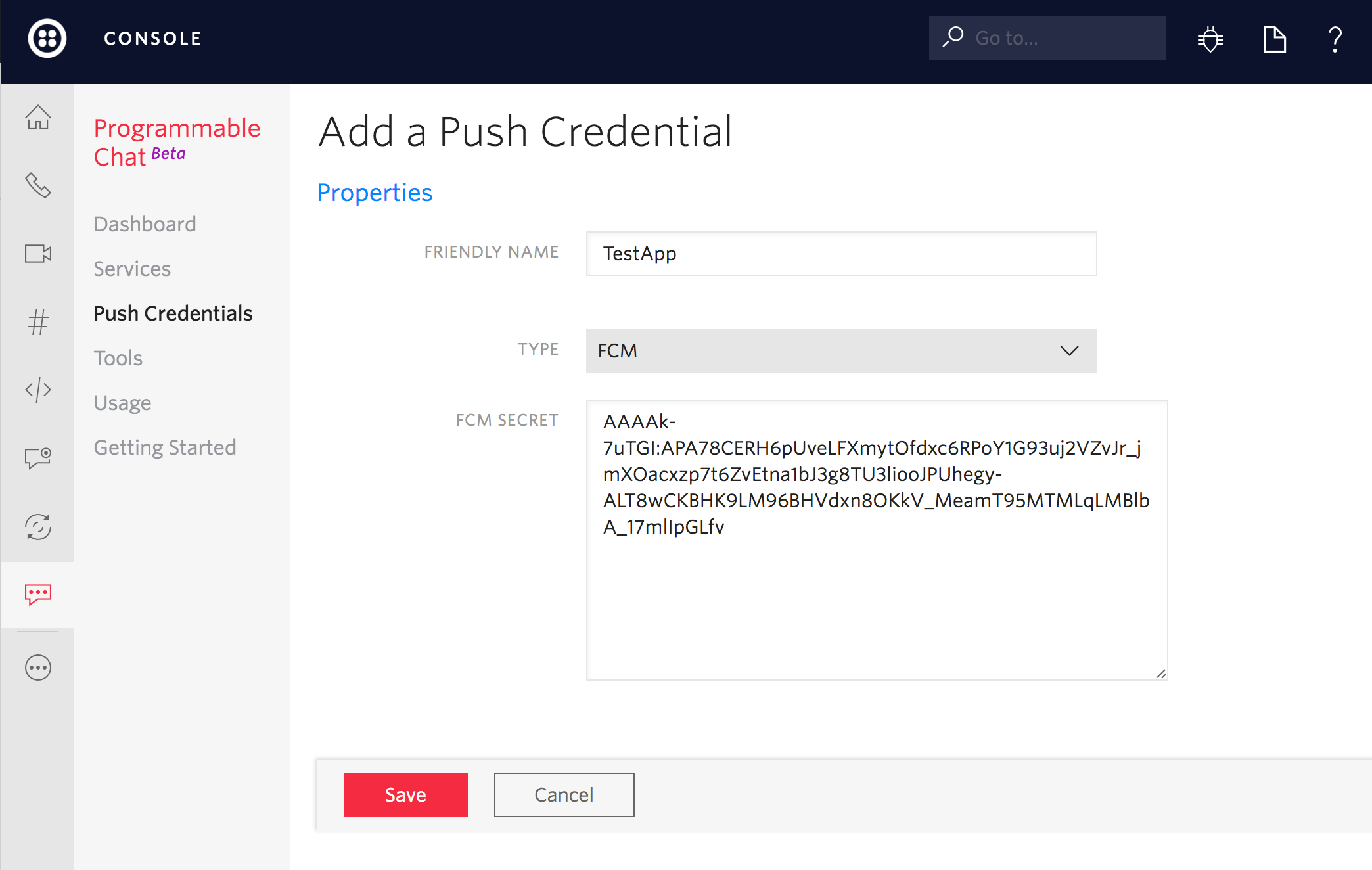
## Step 6 - Pass the API Credential SID in your Access Token
The final step is to ensure that your Chat Android client Access Token includes the correct `credential_sid`—the one you created in Step 5 above. Each of the Twilio server-side SDKs enables you to add the `push_credential_sid`. Please see the relevant documentation for your preferred SDK for the details. Here is an example using the Node.js Twilio server-side SDK:
```javascript
var chatGrant = new ChatGrant({
serviceSid: ChatServiceSid,
pushCredentialSid: GCM_or_FCM_Credential_Sid,
});
```
## Step 7 - Use correct registration API in Twilio ChatClient
Depending on whether you use GCM or FCM (*you cannot use both at the same time*), you need to call the correct ChatClient API methods—`registerGCMToken` and `unregisterGCMToken` for GCM, or `registerFCMToken` and `unregisterFCMToken` for FCM. See the [Twilio Chat Android SDK documentation](https://media.twiliocdn.com/sdk/android/chat/releases/7.0.1/docs/) for details.
That's all we need to make sure the client has access to your registration token.
### Next steps
For information on configuring push notifications on the web, see [Notifications on web](/docs/chat/javascript/push-notifications-web).